Modest fashion photography
Modest and Hijab Fashion Photos Without a Photoshoot
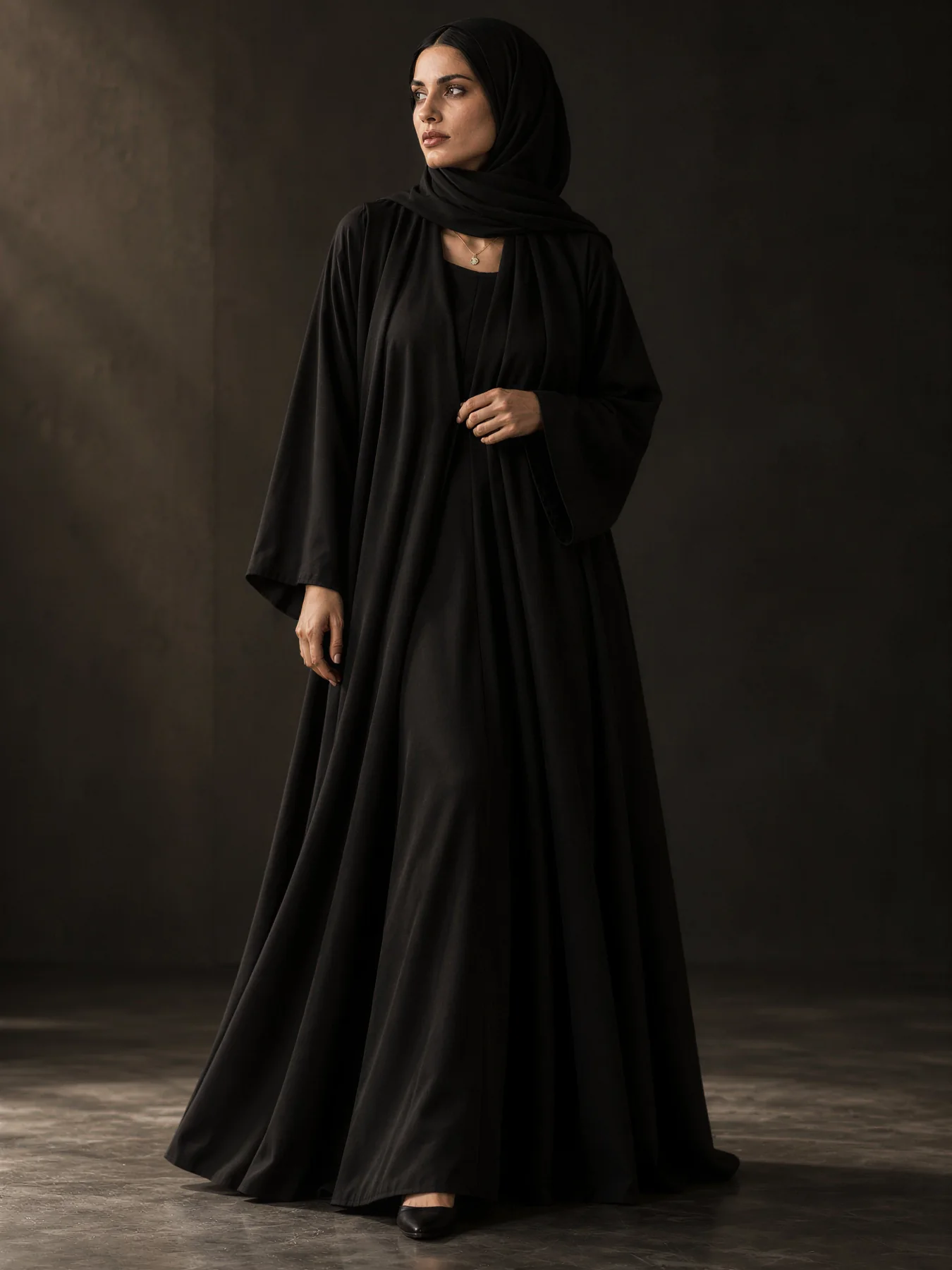
You get on-model photos of modest clothing by uploading a flat photo of the garment and turning on Hijab Mode, which tells the generator to put a hijab on the women model it dresses. There is no photoshoot, no model booking and no separate modest-fashion product — it is a switch inside the normal create flow.
The Tryly Studio · The guide
10 free photos, no card. From $0.33 per day. Photos as low as $0.25 each.
What sellers ask
Can AI show my modest fashion on hijab-wearing models?
Yes: turn on Hijab Mode once in Settings, upload a flat photo of the garment, and every photo you make on a women model is generated with a hijab covering her hair and neck, while her face stays fully visible. It works for abayas, modest dresses, long-sleeve tops and layered looks, with no photoshoot and no model booking. Your first 10 photos are free with no card, so you can check how your own pieces come out before you pay.
How it works
How modest styling works in Tryly
You turn on Hijab Mode once in Settings. From then on, every photo you create on a women model is generated with a hijab instruction attached to that model, and a switch in the create flow lets you drop it for a single photo.
What you control
- One saved setting: Hijab Mode, on or off, in Settings.
- One per-photo switch in the create flow. It starts from the saved setting, so you can drop the hijab for a single photo without changing the default.
- The instruction itself is fixed: the model wears a hijab that covers her hair and neck, the fabric drapes naturally in a modern style that complements the outfit, and her face stays fully visible.
- It applies to women models only and is not applied in Hats mode.
- It is an instruction about the model, not an edit to your photo. A hijab already in your garment photo is not read or adjusted by the switch.
What to check in the result
- Coverage: hair and neck covered and the face visible, in every photo of the set, not only the first.
- Garment fidelity, at full resolution: hem length, sleeve length, neckline, closures and any embroidery or print, against your flat photo.
- Colour against the flat photo, for anything that has to match across a product page.
- Layered pieces: both layers present, and the open layer falling where it does on your photo.
- Anything wrong is a retry, and a retry costs one credit.
Turn on Hijab Mode in Settings. It is one toggle, saved against your account rather than against a single shoot. The settings screen states plainly what it means: hijab on, and all women models will wear a hijab.
Upload the garment photo. Drop in the flat-lay, hanger or ghost-mannequin shot of the abaya, dress or top, and say what the piece is — Full Outfit, Top Only or Bottom Only — so the model is dressed around the garment.
Choose a women model. The hijab instruction is only applied to women models. Pick one from the AI clothing model library or upload your own person.
Leave the hijab switch on, or drop it for one photo. With Hijab Mode on, the per-photo switch appears in the create flow already set to on. Turn it off and that one photo is generated without a hijab; the switch returns to on the next time you open the page, so the default never quietly drifts.
Generate. The instruction is appended to the model’s own character description before the image is made: the model wears a hijab covering her hair and neck, the fabric drapes naturally and in a modern way that complements the outfit, and her face stays fully visible and uncovered.
Repeat for the rest of the collection. The same setting applies to flat-lay on-model photos and to Collections, where the hijab choice is written down per item when the collection is created and then used for every generation in the batch.
Resolution comes from your plan, not from Hijab Mode. Every plan lists 2K photos, and 4K Ultra Quality is a per-photo option: one extra credit on Starter and Premium, included on Ultra and Max.
Two exceptions are built in on purpose. Hijab styling is applied to women models only, and it is switched off in Hats mode, because there the hat is the product being shown.
The garments
What you can shoot this way
Anything you can lay flat, hang or put on a ghost mannequin: abayas, hijabs and headscarves, modest dresses, long-sleeve tops, maxi skirts and layered looks.
| Garment | How to shoot it, and what to check |
|---|---|
| Abayas | Shoot as a Full Outfit. Check the hem length and any embroidery on a sleeve or hem at full resolution against your flat photo. |
| Hijabs and headscarves | Two different jobs. Hijab Mode dresses the model in a hijab as styling; a headscarf you are selling is a garment in its own right and is uploaded like any other piece. |
| Modest dresses | Full Outfit. Compare the colour of the result against your flat photo before publishing. |
| Long-sleeve tops and tunics | Top Only, so the model is dressed with a complementary bottom instead of the generator inventing a whole outfit. |
| Maxi skirts and wide trousers | Bottom Only. Photograph the full length of the piece inside the frame so the hem is not guessed. |
| Layered looks | An open abaya or a duster over a dress has to be rebuilt from a flat photo. Check that both layers are present, that the open layer falls where it does on your photo, and that the inner layer shows the right amount. |
It is not only clothing either. Shoes, bags, watches, jewellery, glasses and scarves go on models the same way, and on those product pages the hijab switch is available wherever a woman is actually shown wearing the item.
Before you shoot
What your input photo needs
A plain, well-lit photo of the garment on its own, with the whole piece in frame. A phone camera is fine. You do not need a studio, a lightbox or a photographer.
Lay the garment flat, hang it, or shoot it on a ghost mannequin. Any of the three works. What matters is that the garment is the only thing in the picture: a plain floor, a white wall or a sheet is better than a busy rail, and nothing should crop off the edge of the frame. With a floor-length abaya that is worth checking twice — a hem cut off at the bottom of the photo is a hem the model has to be given from nothing. Even daylight beats a hard flash, because a strong shadow across an embroidered panel can come back as a smudge.
On the file itself the requirements are loose. JPG, PNG, WebP, HEIC, HEIF and AVIF are all accepted, up to 50 MB per image. Anything under roughly 1024 pixels on its shortest edge will still upload, but you get a warning that a higher-quality photo gives a better result, because detail the input never captured cannot be added later.
The limits
Where it struggles
Fine detail is where to look most closely. Small print and embroidery, sheer layers, the exact drape of a headscarf and precise colour are the things to check at full resolution before you publish, and every retry costs a credit.
Printed text and fine embroidery are the first things to check. A word across a chest panel or a thin line of thread down a cuff can come back subtly wrong — a letter reshaped, a motif simplified. Open the photo at full resolution and read every word and trace every motif before you publish anything with lettering or embroidery on it.
Fabric that is not opaque is the second problem, and modest fashion uses a lot of it. Chiffon overlays, mesh sleeves and lace panels have to be rendered against a body the flat photo never showed, so the drape and the amount showing through can be wrong.
The hijab itself is styling, not a copy of your product. The generator is told to drape it naturally and keep the face visible, but the exact fold, pin placement and length of a particular headscarf style are not something you specify. If the scarf is the thing you are selling, upload it as the garment rather than relying on Hijab Mode to reproduce it.
Exact colour is not guaranteed either. A specific black, or a particular shade of navy or sage, can drift between the flat photo and the on-model shot, which matters when the same colour has to match across a product page. Every attempt costs a credit, including the ones you throw away, so budget for retries. Run your most difficult piece first, on the free photos.
The portfolio
Examples
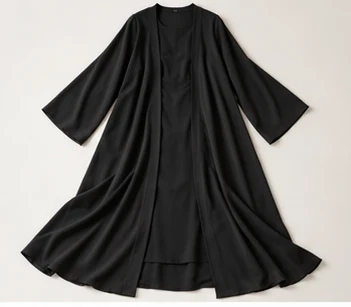
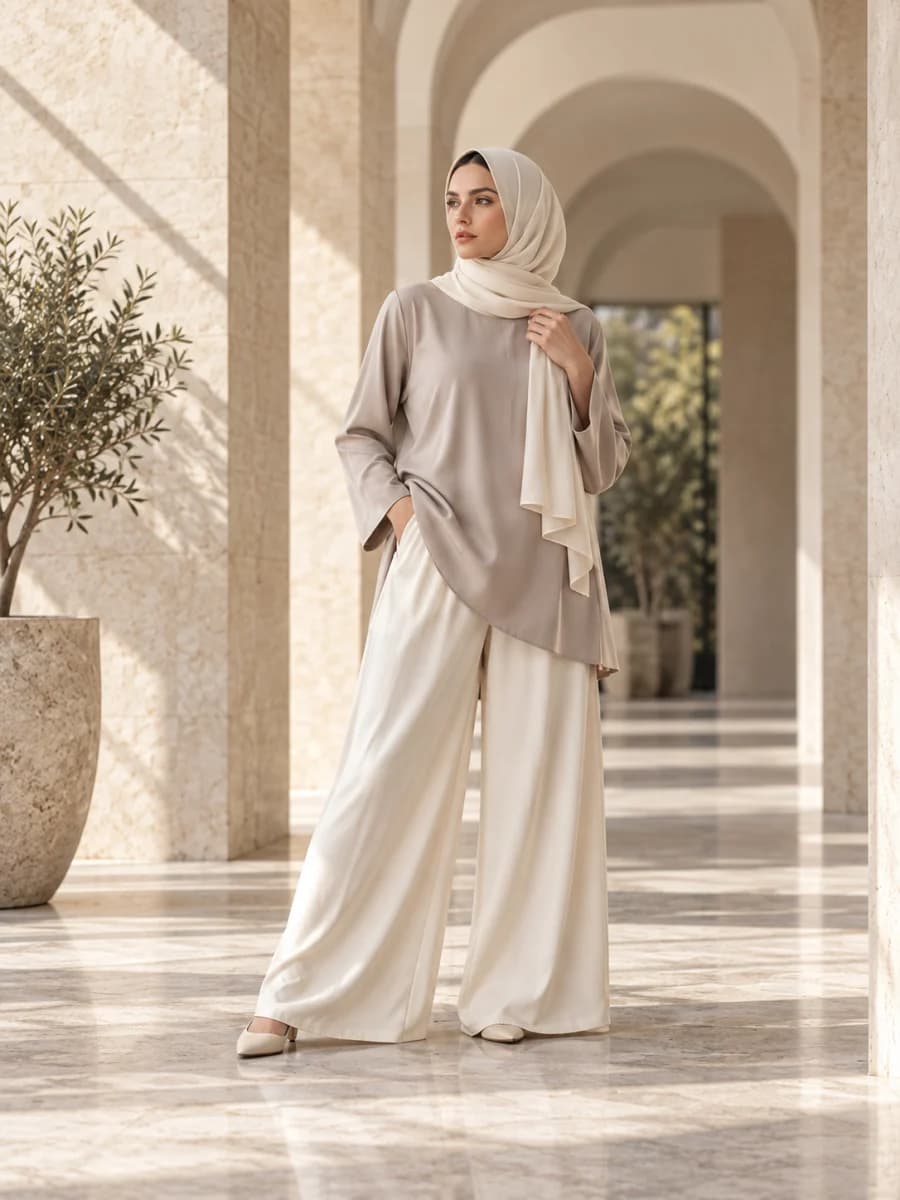
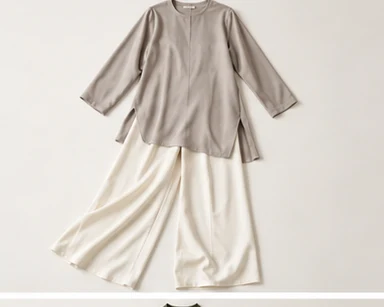
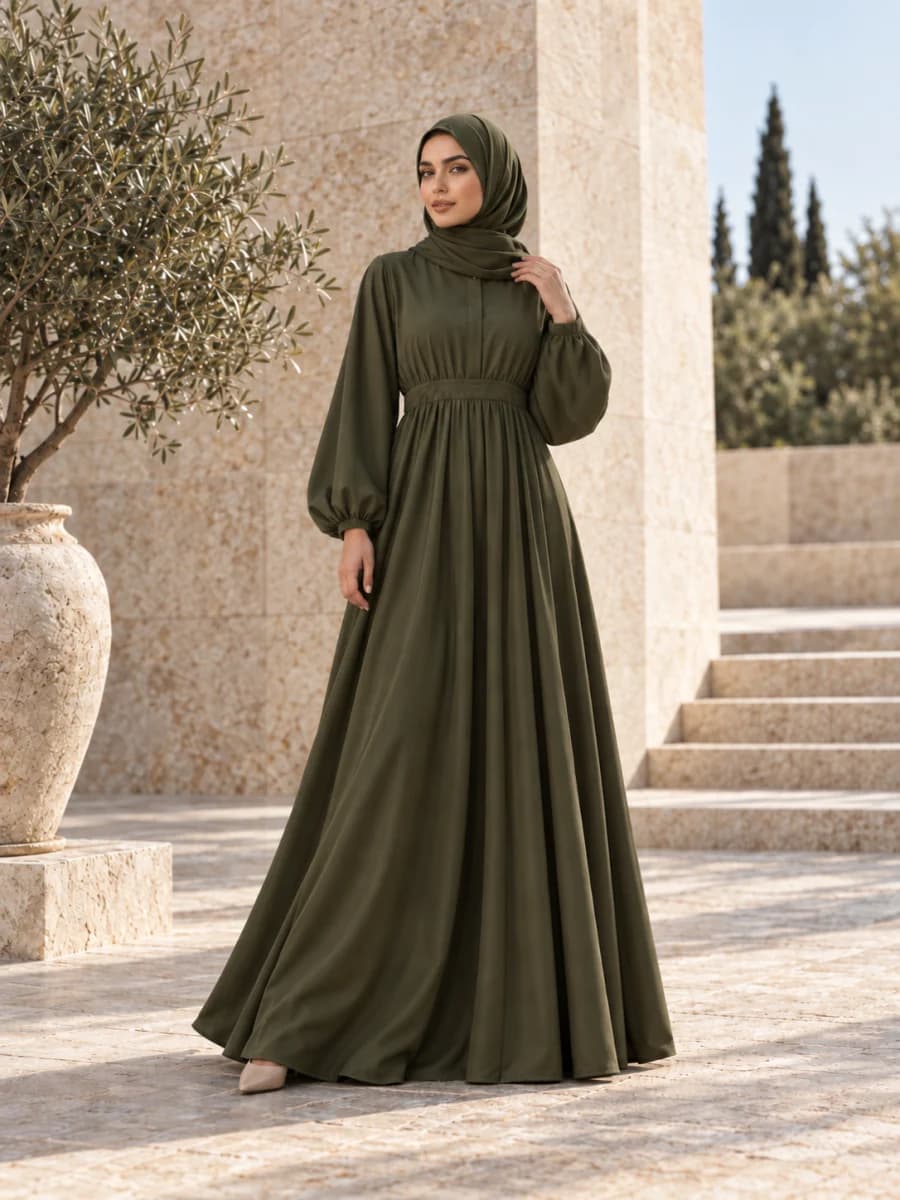
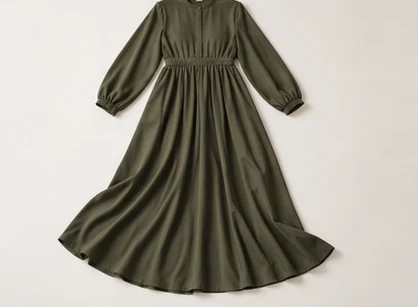
If you want to see the flat-photo-to-on-model layout with images in place, the ten-garment collection walkthrough shows the same workflow end to end.
The price
Pricing
From $0.33 per day. Photos as low as $0.25 each.
$9.99/month is the Starter plan billed annually (300 credits a year); billed monthly, the default is a 25-credit pack. $0.25 per photo is the Max annual 10,000-credit pack.
10 free photos, no card.
Questions
Questions modest-fashion store owners ask
Does the model stay covered consistently across a whole shoot?
Hijab Mode is a saved setting on your account, not a one-off choice. Once it is on, the per-photo hijab switch starts in the on position every time you open the create flow, so every photo you make on a women model is generated with the hijab instruction attached. You can turn it off for a single photo, and it goes back on next time you load the page.
Can I use the same model across a whole collection?
Yes. Pick one model and use it for every garment, and with Hijab Mode on the hijab instruction is applied to each of those photos in the same way. In Collections the hijab choice is stored per item when the collection is created, so a batch of garments is not left to drift between photos.
Is the hijab styling respectful and appropriate?
The instruction the generator receives is short and fixed. With Hijab Mode on, the women model's own description is extended with this: she is wearing a hijab that covers her hair and neck; the fabric drapes naturally and elegantly, styled in a modern, fashion-forward way that complements the outfit; and her face remains fully visible and uncovered. That is the whole instruction. It is applied to women models only and is not applied in Hats mode. It does not name a regional style or a school of dress, so check the finished photo against your own standard before publishing, as you would with any model photo.
Can I control the hijab or layering style?
No. There is one hijab instruction and the only control is on or off: the account-level Hijab Mode setting and the per-photo switch. You cannot specify the fold, the pin placement, the length or a named style. If a particular headscarf is the product you are selling, upload it as the garment so the photo shows your scarf rather than a styled one.
Can I use my own model, or myself?
Yes. Upload a photo of yourself or of your own model instead of picking a preset, and your garments are photographed on that person. Using your own model is available from the Premium plan. There are also 500+ preset models to choose from.
Does it work for abayas specifically?
An abaya is handled the same way as any other full-length garment: photograph it flat, on a hanger or on a ghost mannequin, choose Full Outfit so the model is dressed around the piece, and generate. Before you publish, open the result at full resolution and check the hem, the sleeve length and any embroidery down a sleeve or cuff against your flat photo; fine details can change, and a retry costs one credit.
Can I use the photos commercially, and on marketplaces?
Photos made with purchased credits come with commercial rights under our Terms: use them on your website, in social media and in marketing materials, with no attribution and no model release, since the models are AI-generated. Our help centre lists marketplaces such as Amazon, Etsy and eBay among the places you can use them; each marketplace publishes its own image rules, so check its listing requirements before you upload. Photos made with the 10 free credits are for evaluation and may be used commercially only once you buy a paid pack. Two conditions apply everywhere: comply with advertising rules on AI disclosure, and never present an AI model as a real person.
What does it cost?
One credit is one photo, and every attempt costs a credit — including the ones you reject. $9.99/month is the Starter plan billed annually (300 credits a year); billed monthly, the default is a 25-credit pack. $0.25 per photo is the Max annual 10,000-credit pack. You get 10 free photos with no card, which is enough to find out how your own abayas and headscarves behave before you pay anything.
Does it work for long dresses and maxi skirts?
Yes. Shoot a long dress as a Full Outfit and a maxi skirt as Bottom Only, and photograph the full length of the piece inside the frame so the hem is not guessed. Before you publish, open the result at full resolution and check the hem length, sleeve length and colour against your flat photo. A retry costs one credit, so run your most detailed piece first on your 10 free photos.
Get started
10 free photos, no card. From $0.33 per day. Photos as low as $0.25 each.
$9.99/month is the Starter plan billed annually (300 credits a year); billed monthly, the default is a 25-credit pack. $0.25 per photo is the Max annual 10,000-credit pack.